





The Pinterest Pin Designer Guide: Turn Any Page Into Scored, Ready-to-Publish Pins
Turn any product, recipe, or blog page into finished, scored Pinterest pins with the PinInspect Designer — URL or keyword in, reviewed pins out.
Your pages are already written. The Designer reads them — headline, images, structured data — and drafts complete pins with keyword-led copy, a real SEO score, and a freshness check, so a published page becomes a working pin in minutes instead of an afternoon.
Here is the quiet reason most pages never get the pins they deserve: making one proper pin by hand — image, overlay, title, description, alt text, board — takes long enough that it loses to every other task on the list. So the page sits there, published and good, with no pin working for it. The Pinterest Pin Designer exists to remove that excuse. It starts from the page you already wrote and turns it into finished, scored pins — no blank canvas, no design grind.
This guide walks the full workflow: what the Designer reads from your page, how angles and templates work, how the SEO score and freshness check protect you, and how the whole workflow runs — every step of it free.
What the Designer Actually Does
Give the Designer a URL and it reads the page the way a careful assistant would. It pulls the headline, the description, and the page's images, and it parses the structured data — a recipe page's ingredients and steps, a product page's name and price context — so the draft pins are built from what your page actually says, not from a generic guess.
From that material it drafts several angles: different editorial takes on the same page. A recipe might get a hero angle, an ingredients-checklist angle, a step-by-step angle, and a mistakes-to-avoid angle. A product might get a spotlight, a benefits angle, and a how-to-use angle. Each angle carries its own headline, keyword-led title, description, alt text, and a suggested board — a complete pin, not just an image.
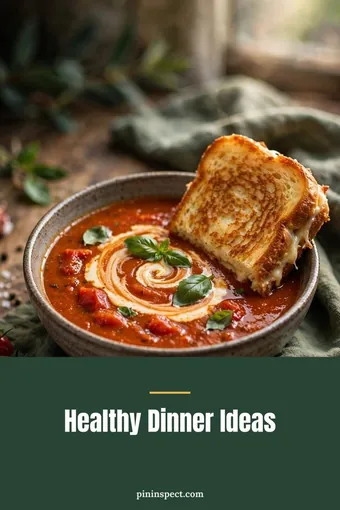
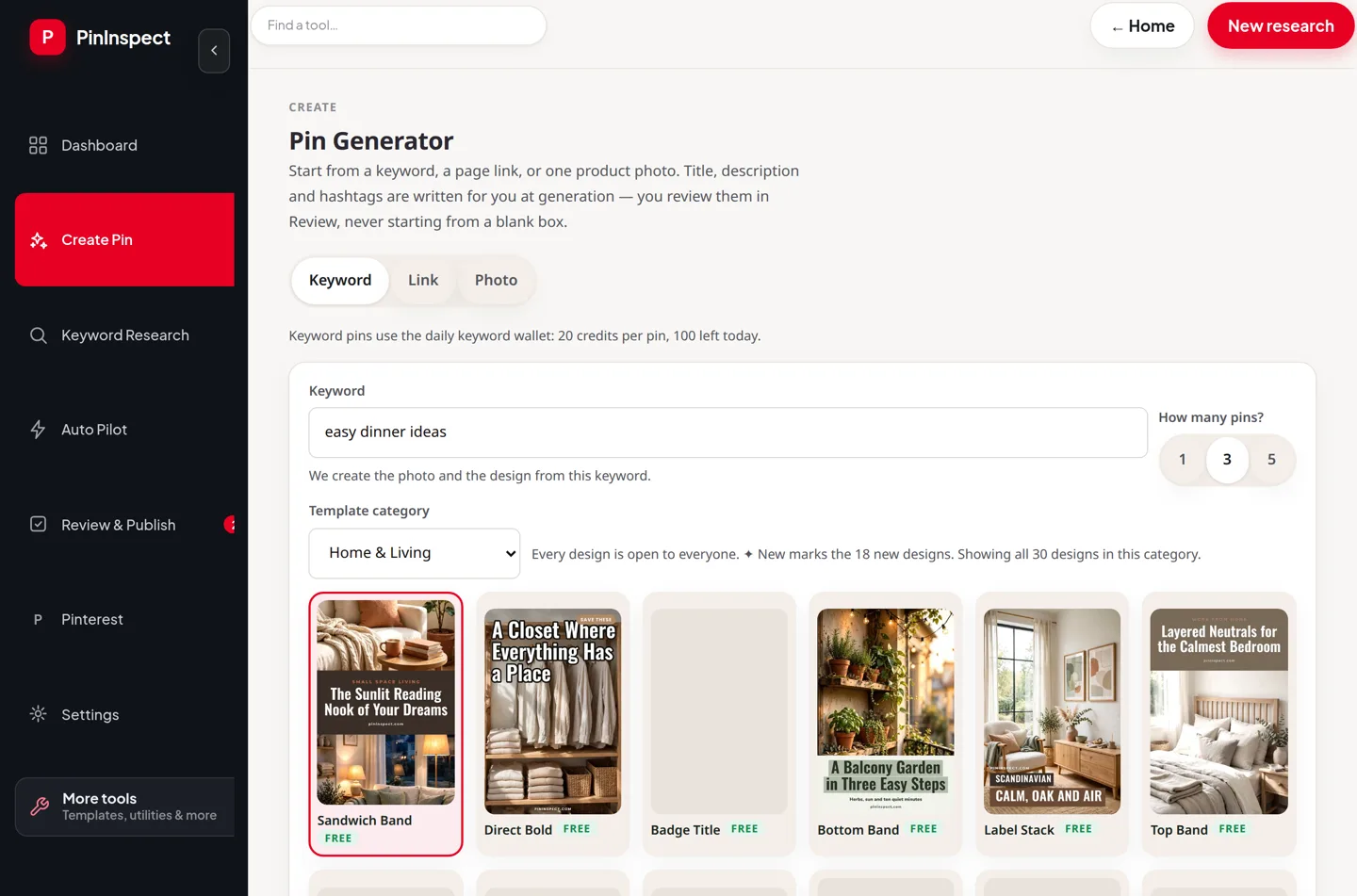
Those drafts are then typeset into templates — the layout system renders real 1000×1500 pins with the text set into the design, the same 2:3 standard covered in our guide to creating Pinterest pins. The current template set includes layouts like Harbor Bar, Headline Cap, Checklist Split, Gradient Story, Center Band and Frame Note — every layout is free, and the picker shows them all before you choose.
Pages with complete structured data draft the best pins. If your recipe or product pages carry proper JSON-LD, the Designer's angles can use real ingredients, steps, and product details. Thin pages still work — the Designer falls back to the headline, description, and images — but rich pages get richer drafts.
The Workflow: Page to Published Pin
Five steps, in order — and you stay in control at every one of them. Nothing publishes itself; the Designer prepares, you decide.
Paste the Page URL
Drop in any published page — a blog post, a recipe, a product listing. The Designer reads it and confirms what it found before drafting anything, so you can see the source material it is working from.
Pick an Angle
Review the drafted angles and choose the take that fits your goal: the checklist for saves, the how-to for clicks, the mistakes angle for curiosity. You can generate more than one pin per page — different angles are different pins, not duplicates.
Choose a Template and Review the Design
See the pin exactly as it will publish: a full-size preview with your headline typeset into the layout. Long headlines are measured and fitted to the template, so what you preview is what you get. Switch templates with one click if a layout fights your image.
Read the SEO Score and Apply the Fixes
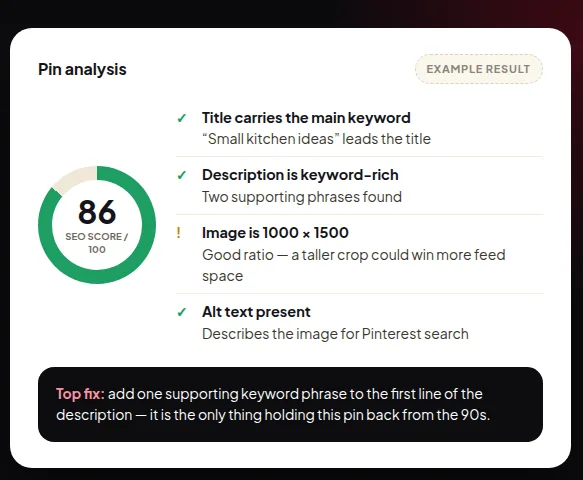
Every draft is scored out of 100 on seven factors — title length and keyword placement, description depth and call to action, alt text, board choice, and keyword coverage — with the specific fixes listed beside the score. Two minutes of fixing here is the cheapest ranking work you will ever do. The full breakdown lives in our Pinterest SEO score guide.
Download It — or Queue It
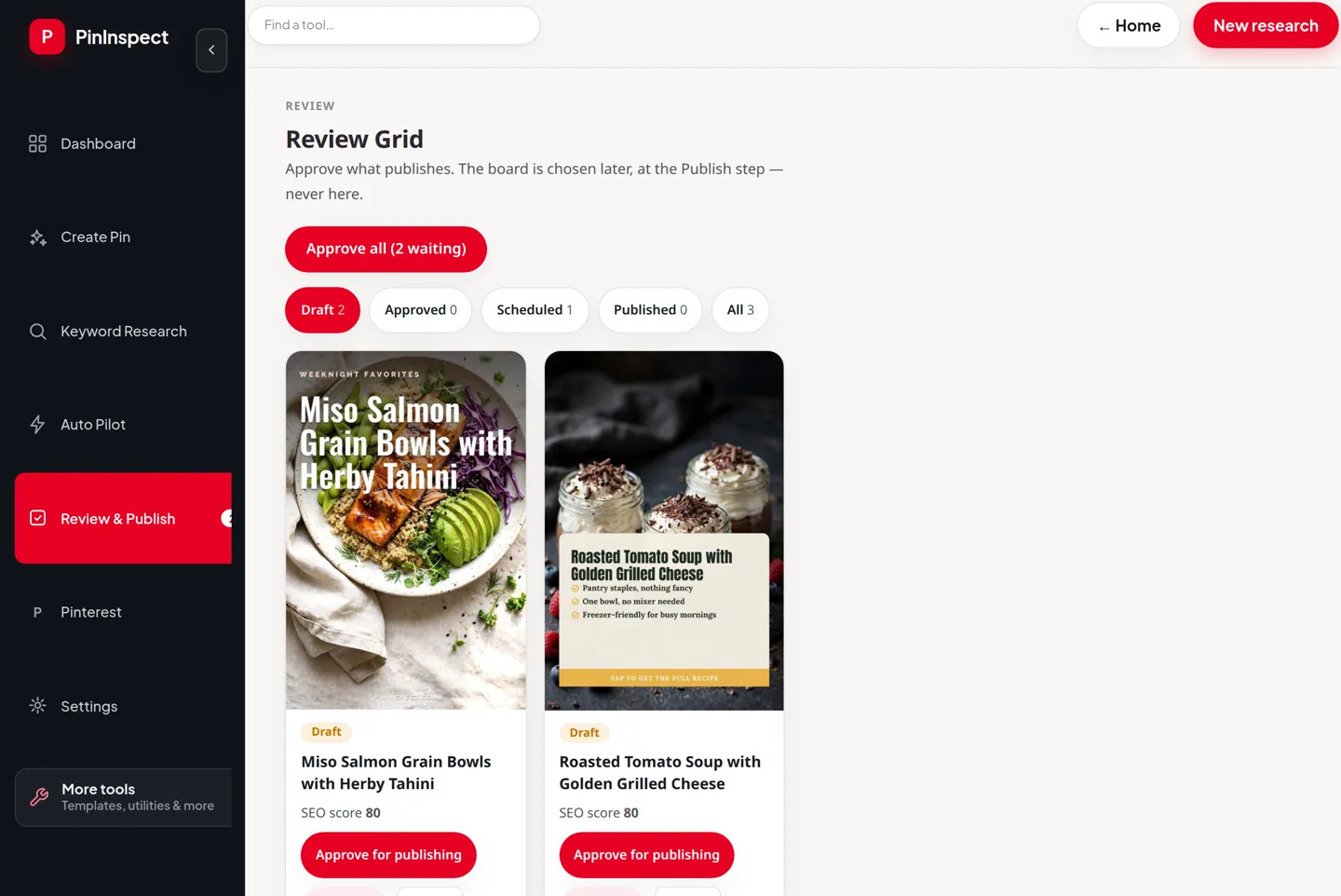
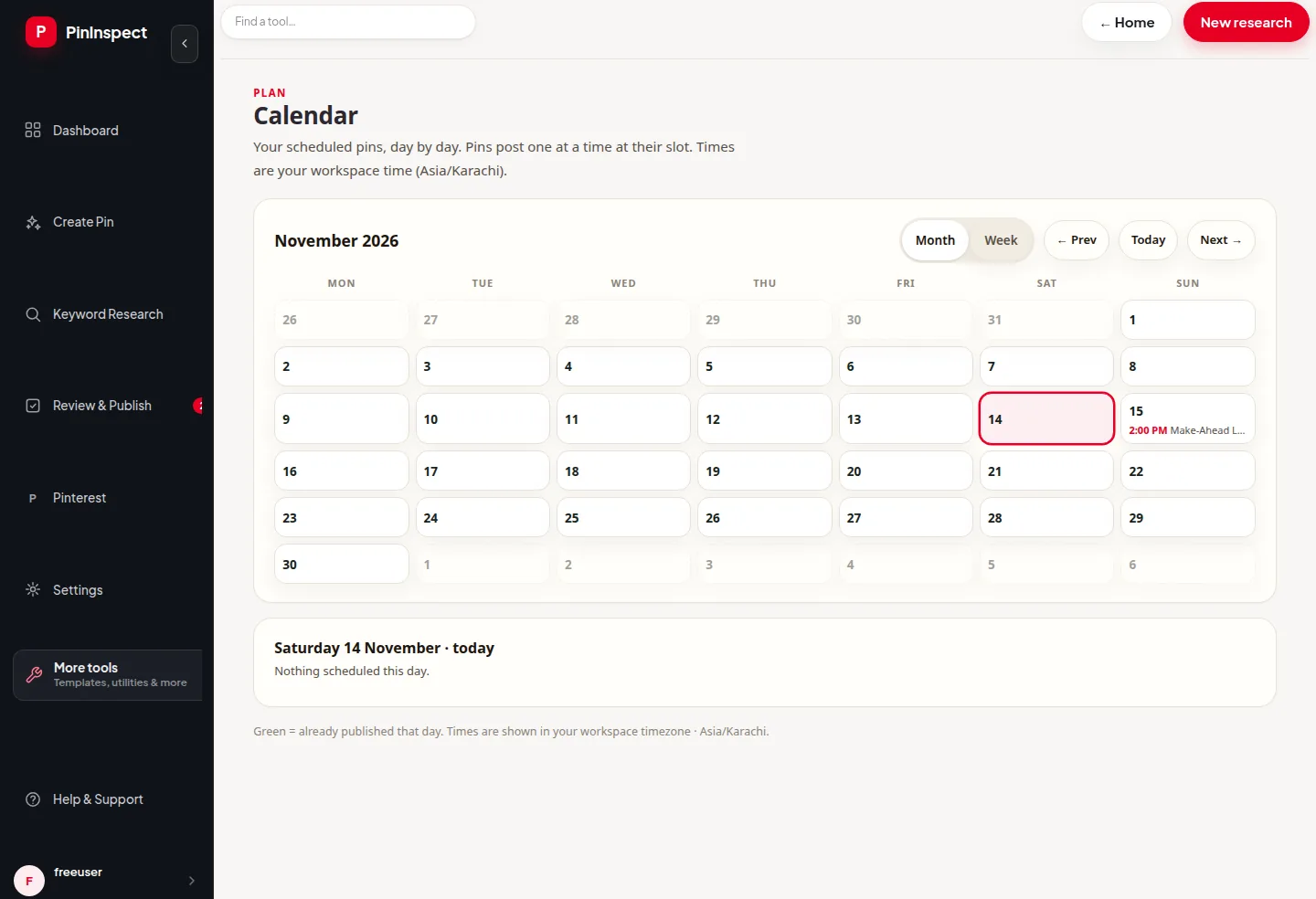
Download the finished 1000×1500 file and publish it yourself, or add it to your scheduling queue and let the automation publish it inside your chosen window. Scheduling is covered in our pin scheduling and automation guide.
Start from a page you already published
Open the Designer, paste a URL, and watch a finished, scored pin come back — previews and scores are free.
Keyword Mode: Start From a Topic Instead
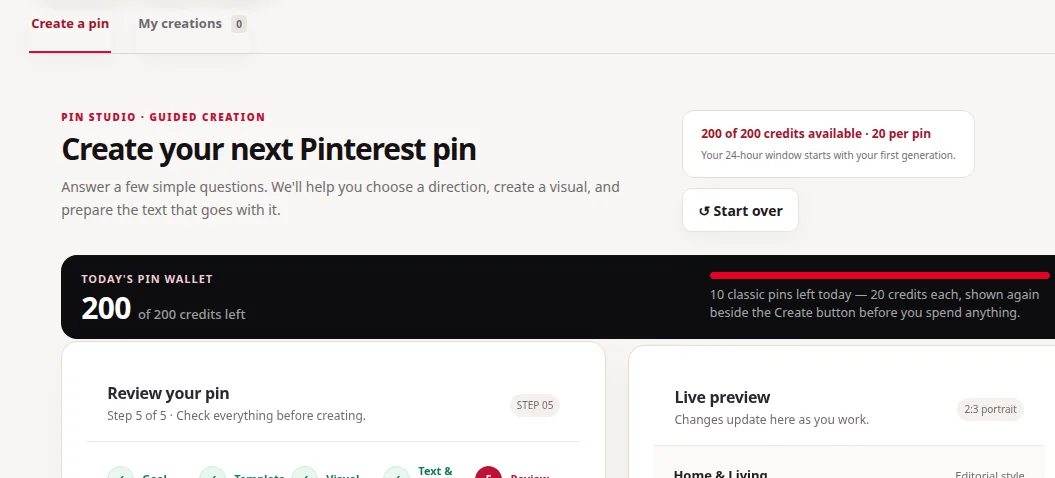
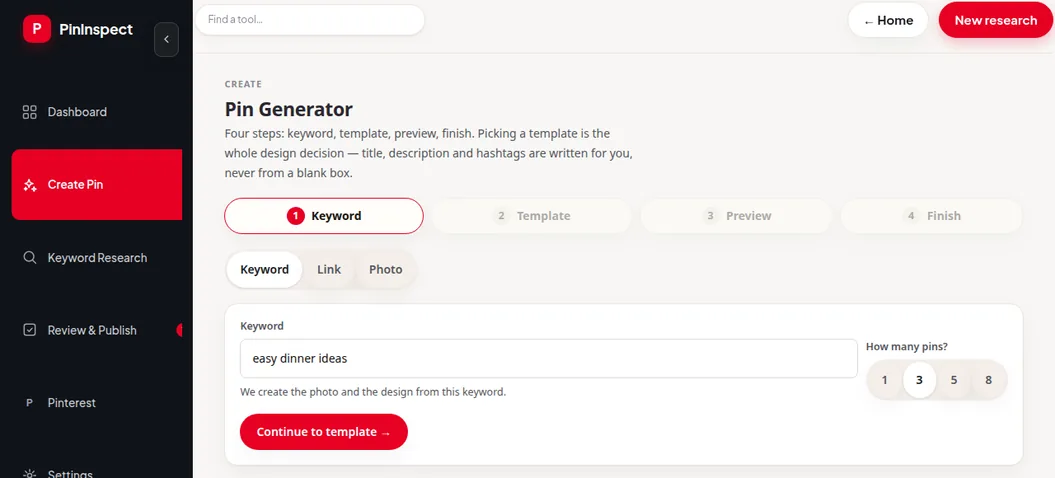
No page yet? The Designer also runs in reverse. Give it a keyword or topic and it drafts pins from the phrase itself — useful for testing a niche before you write the post, or for building pins around a keyword your research surfaced. Keyword mode runs under the same fair-use cap as everything else — 5 designed pins a day for every user — so research-driven experiments and page-based work share one simple daily allowance.
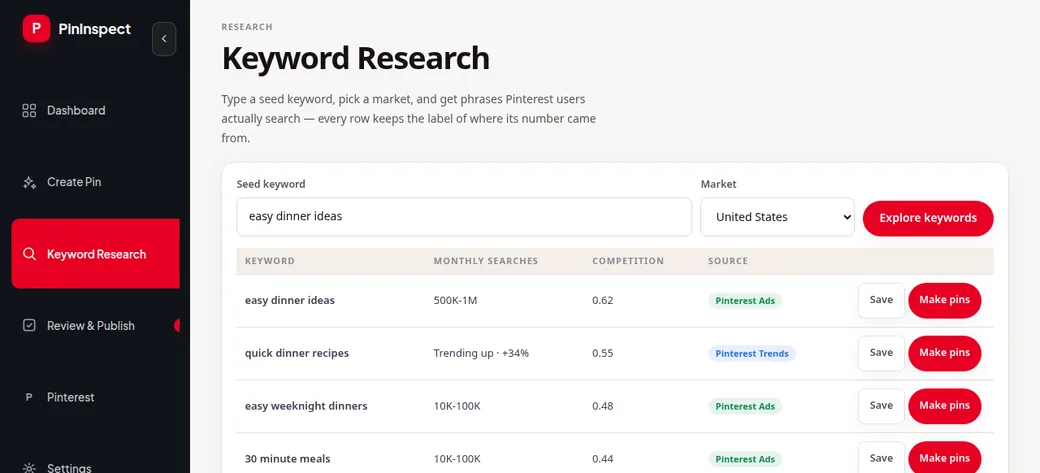
The natural loop is: research a phrase in the keyword tool, save the winners, draft pins for the best of them — the full loop is in our keyword research workflow guide. When the post is eventually published, re-run the same topic through URL mode so the pins link to the real page.
The Freshness Check: No Accidental Duplicates
Pinterest rewards fresh pins and quietly ignores near-copies — so the Designer checks before you repeat yourself. When a new draft for a page looks too similar to a pin you already generated for that URL — measured by image similarity and title overlap — you get a warning first, with the option to change the angle or headline instead.
This matters more than it sounds. The standard advice — create multiple pins per URL over time — only works when each pin is genuinely new. Angles make that easy: the same page, revisited next month from the checklist angle instead of the hero angle, is a fresh pin. The same hero pin re-rendered is not, and now you will know the difference before Pinterest has to tell you. Our fresh pins strategy guide covers the longer-term playbook.
What Is Free — Honestly
The Designer is a real working tool, not a teaser. You get full design previews and the complete SEO score with its fix list, on every draft, free — because a score you cannot see is a score you cannot act on, and a preview with a watermark teaches you nothing about your own pin.
Everything is included: downloading the pin file, every template, and the scheduling queue. The one limit is a fair-use cap of 5 designed pins a day, which applies to everyone equally, and ads support the site — there are no paid plans and nothing to unlock. The pricing page explains the model — check it there rather than trusting any summary, including this one.
The Designer is one door into the workspace, not a separate product. The classic keyword pin generator still exists — it lives on as a mode inside the Designer, and its home is still the pin generator landing page. One account, one workspace, every tool.
Frequently Asked Questions
Start From a Page You Already Published
Paste one of your own URLs into the Designer and review the scored drafts — previews and scores are free, and nothing publishes without your say-so.
Starting from a pin you already published instead? Download the original pin in full quality first, so whatever you build next starts from the real file — not a compressed screenshot.